
Import and Manage Icons
Use your own icons for waypoints, route points or the mobile GPS marker. The Select Icon picker lets you browse the supplied icons, import PNG images and keep frequently used choices in Favourites.
Prepare Your Image
- Use a genuine PNG file, no larger than 256 KB. Changing a file's extension to
.pngdoes not convert it. - Choose a clear image that remains recognisable at a small size. A transparent background avoids a solid rectangle around the symbol.
- Give the file a useful name before importing, for example
Camp Marker.png. The filename without.pngbecomes the icon's name. - Keep the original PNG so you can import it again if needed.
Open Select Icon
Open a symbol control where you want to use the icon:
- One waypoint or route point: open its Properties, then its Waypoint or Point appearance section. Open Symbol and choose More icons… below the favourite shortcuts.
- An Activity's waypoints: open Settings > Activities, choose the Activity, then Waypoint style > Symbol.
- GPS marker on mobile: open Settings > GPS Marker, choose Icon as the Marker type, then tap Marker icon.
The picker is titled Select Icon. It contains your available icon categories, plus Favourites and My Imports when those contain icons. Scroll to find the category you need. The filename picker used during import depends on your operating system.
Import Your PNG
- Open Select Icon using one of the routes above.
- Choose Import at the bottom of the picker.
- Find and open the PNG file in your device's file picker.
- The imported icon appears under My Imports, with its name and preview selected at the bottom.
- Choose Select to use it for the symbol or marker you were editing.
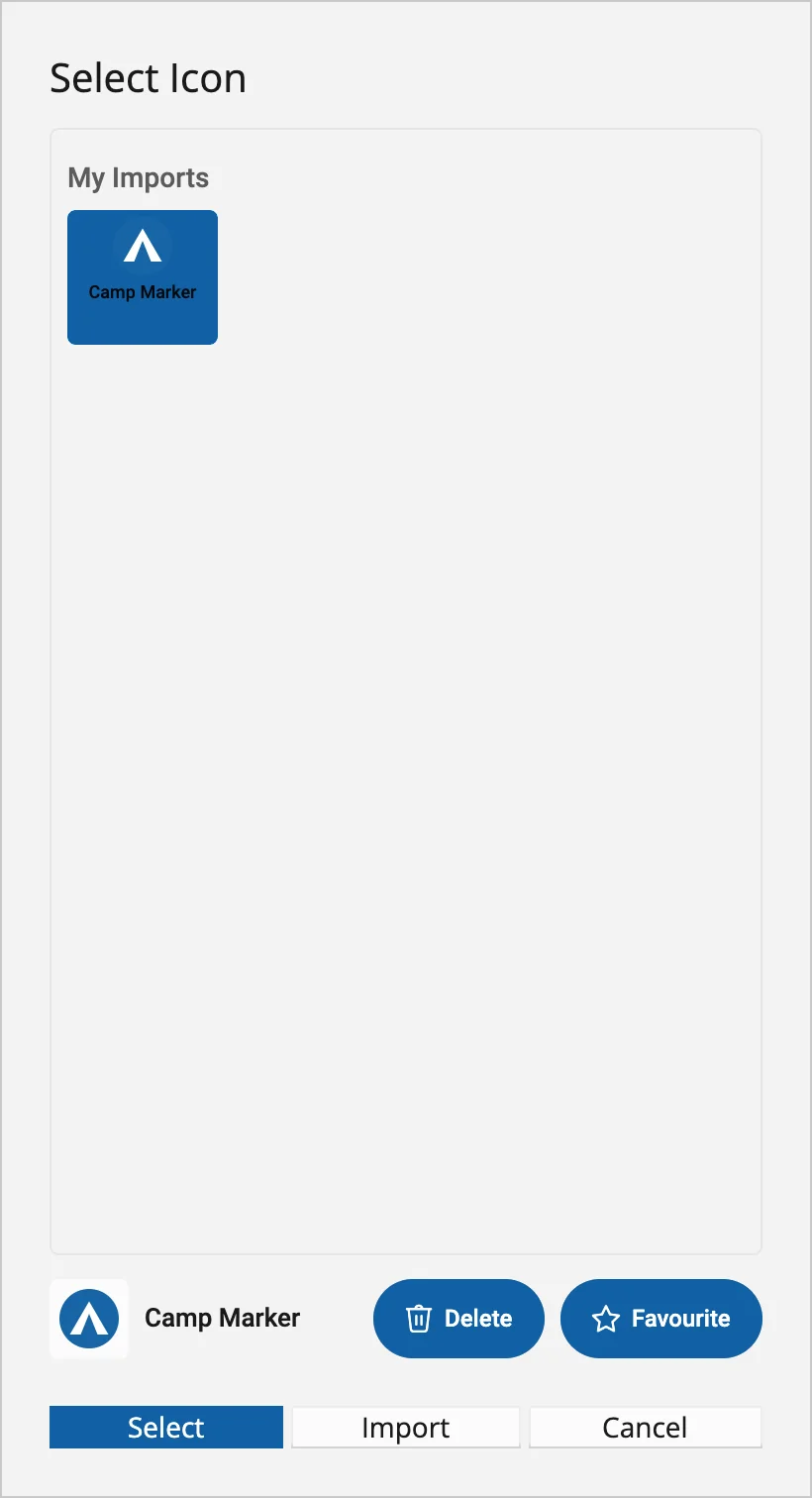
Importing adds the image to your icon collection. Where you opened the picker decides which appearance changes when you choose Select: one waypoint's custom symbol, an Activity's Waypoint style, or your GPS marker. Importing an image alone does not change every waypoint.
Cancel closes the picker without applying its selected icon. Imports, favourites and deletions are saved as you make them; Cancel does not undo those changes.
Keep Icons In Favourites
- Select an icon in the picker. You can favourite supplied icons and your own imports.
- Choose Favourite. The icon appears in Favourites near the top of the list.
- To remove it from that list, select it and choose Unfavourite.
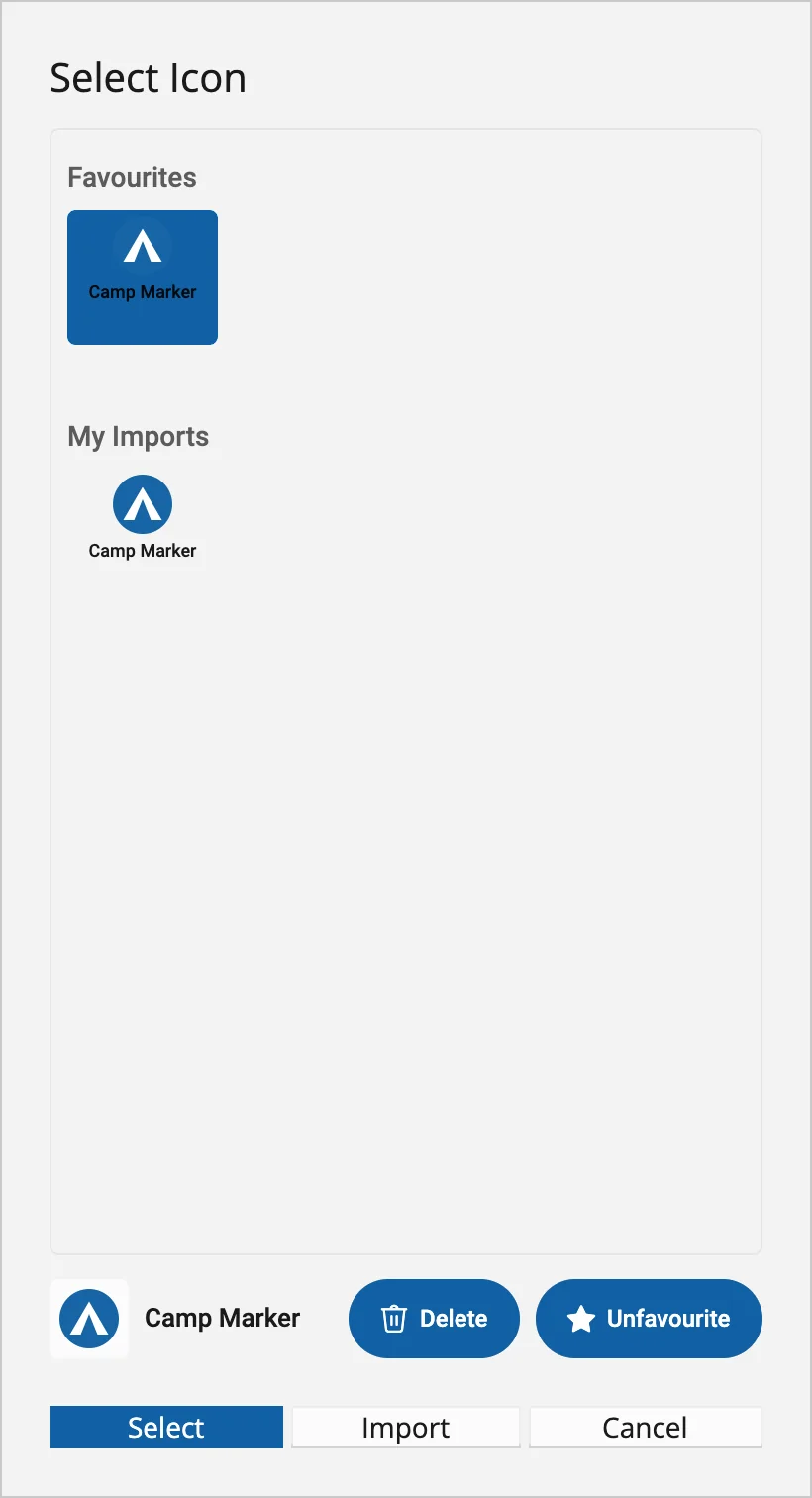
Favouriting an icon does not apply it to an item. Use Select when you want to use it for the appearance you are editing.
Name Or Replace An Imported Icon
Choose the name through the PNG's filename before import. The current picker has no Rename control.
To use a revised picture or a different name, import the new PNG, choose it wherever you used the old icon, then delete the old import if you no longer need it. Importing the same filename again creates another icon; it does not replace the earlier image automatically.
Delete An Imported Icon
Before deleting an icon, choose a replacement for any waypoints, route points or GPS marker that use it.
- Open Select Icon and select the icon under My Imports, or its entry in Favourites.
- Choose Delete. This button is available for imported icons only.
- Review Delete Import and choose Delete to confirm, or Cancel to keep it.
Deletion cannot be undone. It also removes the icon from Favourites. Your waypoints, routes and tracks are kept, but the deleted image is no longer available for them to use. A waypoint may show a fallback marker; the GPS marker falls back to its ring and direction line if its image is missing.
To remove an icon from Favourites while keeping the image, use Unfavourite instead.
Use Your Icons On Another Device
Imported images and icon favourites sync through your OMN account. Run sync after making changes, then sign in with the same account and sync on the other device. A deleted import is removed there when the deletion syncs too.
If an icon has not arrived yet, allow sync to finish before changing its appearance again. Offline map downloads are separate from imported icons. See What Syncs.
If Import Does Not Work
- Image is too large: reduce the PNG's file size to 256 KB or less, then try again.
- File is not a valid PNG image: export or convert the original image to PNG rather than just renaming the extension.
- An imported image is blank or looks wrong: open the source PNG in an image viewer and check its contents and transparency before importing again.
- An icon is missing on another device: check the account and let both devices sync. See Sync Issues if it still does not appear.