GPS Button
The GPS button on the mobile map screen turns live location on and recentres the map on you. Its centre colour shows the quality of your position, arrows show when you can recentre, and the outer ring shows whether a tracklog is recording or paused.
If OMN4 asks for location access, follow GPS Permissions.
GPS Off, Searching And On
These icons apply when you are not recording a tracklog.
| Button | State | What it means |
|---|---|---|
 | Off | Tap to turn GPS on. OMN4 centres the map when a usable position is available. |
 | Searching | The button pulses while OMN4 waits for a live fix. A previously known position may remain visible on the map. |
| On — limited or delayed position | The reported accuracy is poorer than 10 m, the fix is over 60 seconds old, or its accuracy or age is unavailable. |
 | On — good position fix | The device reports accuracy of 10 m or better and the fix is no more than 60 seconds old. |
The searching example above is a still image; in the app it fades in and out. A quick fix may take the button straight to green. Orange can look yellow on some screens.
While the map is centred on you, it moves as your position changes. Tap GPS again to turn it off when you are not recording.
After Moving The Map
Drag the map to look further along your route. GPS keeps updating your position, but the map stops following you. The button changes to inward-pointing arrows:
| Button | State | What tapping does |
|---|---|---|
 | Recentre — limited or delayed position | Centres the map on your position and resumes following you. It also pulses if GPS is still searching. |
 | Recentre — good position fix | Centres the map on your position and resumes following you. |
To turn GPS off after moving the map, tap once to recentre, then tap again. This applies when no tracklog is recording, including when a tracklog is paused.
While Recording A Tracklog
A red outer ring means a tracklog is recording. The centre stays green or orange according to the fix quality. The recording ring remains visible while GPS is searching or has no fix.
| Map following you | Map moved away | State |
|---|---|---|
 | 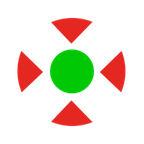 | Recording — good position fix |
 |  | Recording — limited, delayed or no fix |
Tapping GPS recentres the map. It does not turn GPS off or stop the recording. Use Pause Tracklog or Stop Tracklog from the map action menu; see Tracklog Controls.
While A Tracklog Is Paused
A blue outer ring with a pause badge means the tracklog is paused: it is still open, but no new points are being recorded. GPS can be off or on while paused.
| Centred button | Recentre button | State |
|---|---|---|
 |  | Paused — GPS off. Tap to turn GPS on and centre the map. |
 |  | Paused — GPS on, limited, delayed or no fix. Tap to recentre if you moved the map, or turn GPS off if already centred. |
 |  | Paused — GPS on, good position fix. Tap to recentre if you moved the map, or turn GPS off if already centred. |
Turning GPS on while paused does not resume recording. Choose Resume Tracklog from the map action menu to continue the same tracklog.