Showing and Hiding Items
You decide which of your routes, tracks and waypoints appear on the map. Use the eye buttons in Routes, Tracks & Waypoints to show or hide them, or use Hide Item from an item's context menu on the map. Hidden items stay saved in your library, ready to show again whenever you want.
Hide An Item From The Map
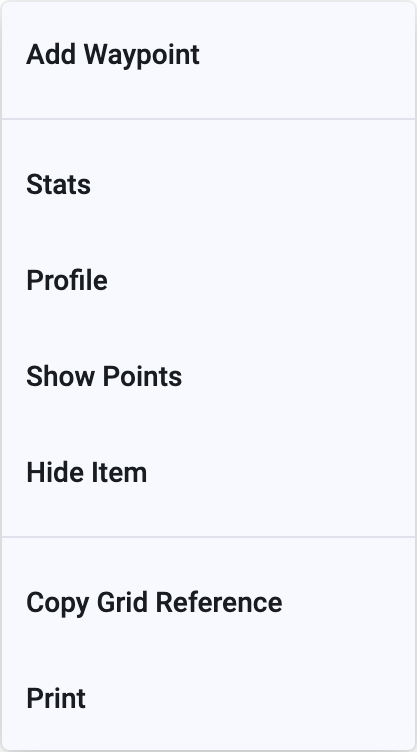
The Hide Item action works the same way on desktop, phones and tablets. Only how you open the context menu differs.
- Open the context menu directly on the route, track, or waypoint: right-click on desktop, or press and hold on a phone or tablet.
- Choose Hide Item.
The item disappears from the map and stays saved in Routes, Tracks & Waypoints.
If several waypoints are saved together in one item, Hide Item hides that item's waypoints together.
If Hide Item is missing, close the menu and open it directly on the line or point. Opening the context menu on empty map space offers a different set of actions.
Use The Eye In Routes, Tracks & Waypoints
- Open Routes, Tracks & Waypoints from the main menu.
- Find the saved item. Open its folder if necessary.
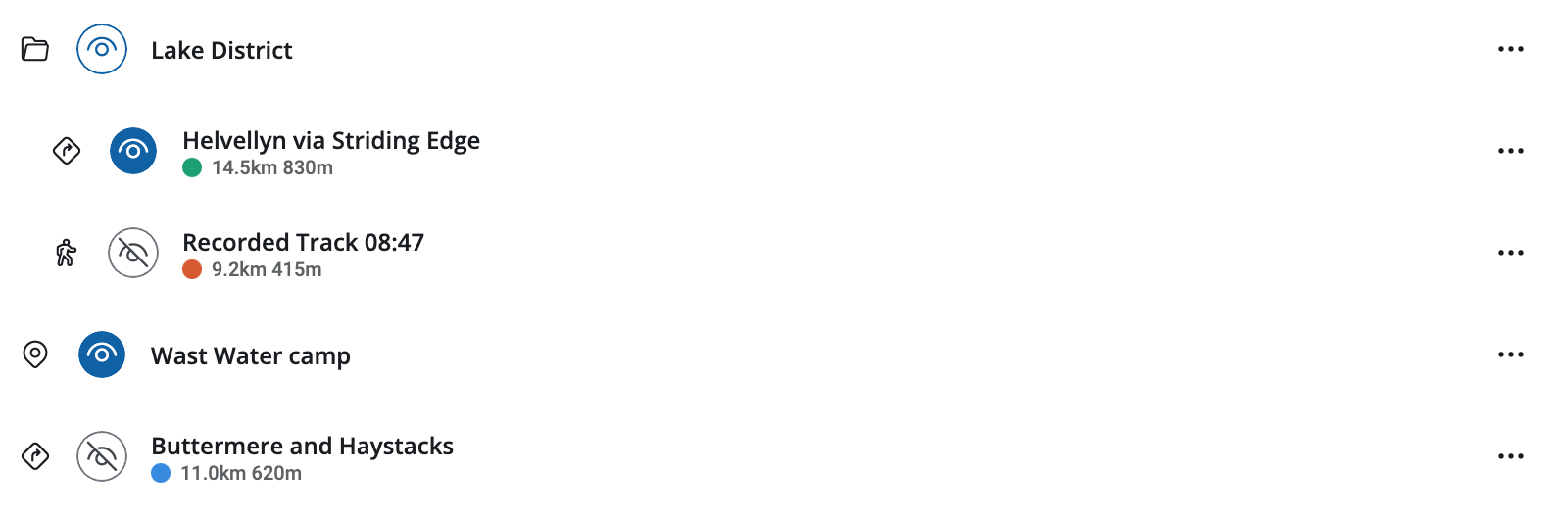
- Click or tap the eye button beside its name to show or hide it on the map.
What The Eye States Mean
| Eye | Meaning | Click or tap to… |
|---|---|---|
 | Shown on the map. For a folder, all its contents are shown. | Hide the item or the folder's contents. |
 | Hidden from the map. For a folder, all its contents are hidden. | Show the item or the folder's contents. |
 | Partly shown: some items inside the folder are shown and others are hidden. | Show all the folder's contents. Click again to hide them all. |
Changing a folder's eye affects items inside nested folders too, even when those folders are collapsed.
The Other Icons In Each Row
| Icon | What it means |
|---|---|
 | Folder — click or tap the folder icon to expand or collapse its contents. This changes the list, not what is shown on the map. |
 | Route — a planned line. |
 | Track — a recorded line. |
 | Waypoints — saved locations. |
| … | The item's actions, including View, Properties..., and Delete. |
The small coloured dot beneath a route or track name shows its line colour. Use the eye to check whether it is shown on the map.
Hide All Items
To hide your routes, tracks and waypoints together:
- Open Routes, Tracks & Waypoints.
- Open the round menu button at the bottom right.
- Choose Hide all.
All saved routes, tracks, and waypoints are hidden from the map. Your library and the background mapping remain available.
Show An Item Again
Open Routes, Tracks & Waypoints, find the item, and click or tap its crossed-out eye.
To move the map to the item as well, open its … menu and choose View.
Hide keeps your saved data. You can show the item again whenever you want. Delete removes an item from your library.