Activities Explained
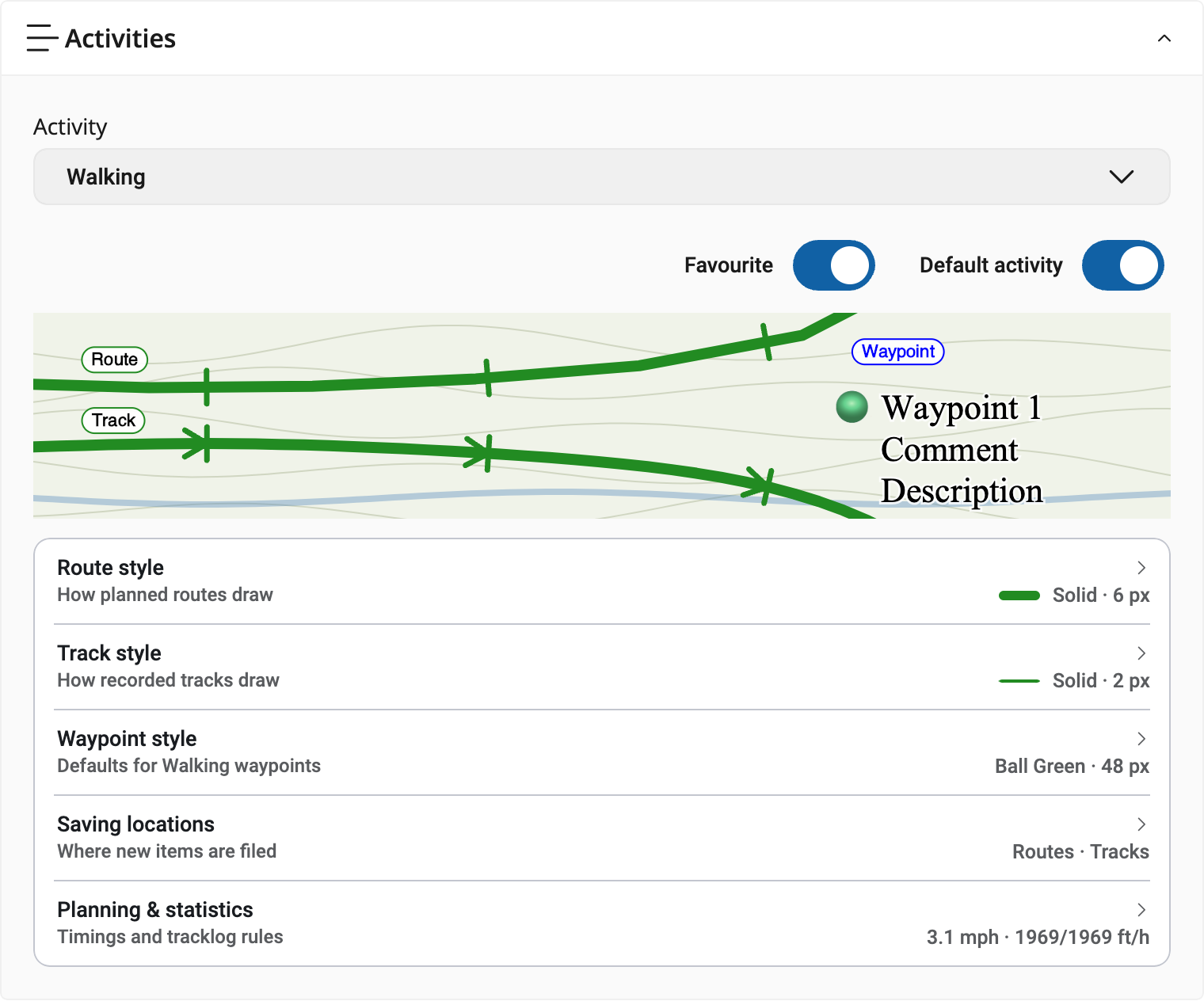
Every route, track and waypoint has an Activity, such as Walking or Cycling. The Activity supplies its usual appearance and calculation settings. You can change those settings for everything using that Activity, or customise an individual item in Properties.
OMN4 has 21 Activities. You can't create or rename them, but you can change every one of their settings.
Where An Item's Activity Comes From

- Routes you draw: the Activity picker at the top right of the map in Edit Mode. It starts on your Default activity. If you change it, OMN4 remembers your choice until you close the app or sign out.
- Waypoints: added in Edit Mode, they use the same picker. Added outside Edit Mode, they use your Default activity.
- Tracklogs: you choose an Activity when you tap Start Tracklog.
- Imports: recognised Activities are kept. For anything OMN4 can't match, the import asks which Activity to use.
OMN4 starts every account with Walking as the Default activity. Walking's routes are green, which is why many imported routes look green.
How To Tell Where A Look Comes From
Open the item's Properties and choose Appearance. The Activity is shown at the top.
A value marked with an asterisk (*) has been set on this route only. Everything else follows the Activity. If a route ignores a change you made to its Activity, look for asterisks first.
Ways To Change The Look
From broadest to narrowest:
| I want to… | Do this | What it affects |
|---|---|---|
| Change how all my Walking routes look | Settings > Activities > Walking > Route style | Every route using Walking, except values marked * on a route |
| Draw the next route as a different Activity | Choose it in the Edit Mode Activity picker | New routes and waypoints only |
| Change one route's Activity | The route's Properties | That route. Its * values stay. |
| Put a whole folder on one Activity, such as a folder of imported routes | The folder's Set Activity... | Everything in the folder and the folders inside it. Its * values are cleared. |
| Make one route different | The route's Properties > Appearance | That route only |
Changing a route's Activity in Properties and using Set Activity... on a folder behave differently on purpose:
| Action | What happens to values set on the item |
|---|---|
| Change Activity in an item's Properties | They stay. The item takes everything else from the new Activity. |
| Set Activity... on a folder | They are cleared, so everything matches the Activity. Any adjustments you choose in the Set Activity window are then applied. One Undo puts it all back. |
Reset
Reset appearance in a route's Properties removes the values set on that route, so it follows its Activity again. It does not change the Activity's settings.
To put back a single value, choose the Activity's value for it again, for example the first colour swatch. The asterisk disappears.
Routes, Tracks And Waypoints Are Styled Separately
Each Activity has its own Route style, Track style and Waypoint style. Changing one does not change the others.
A GPX file saved as a track, which many apps produce, imports as a Track and uses Track style. On mobile, Settings > Tracklogs can give the tracklog you are recording its own colour, so you can tell it apart from a track you are following. Once saved, the tracklog uses its Activity's Track style.
Activities Also Do The Calculations
An Activity's Planning & statistics set the speed, ascent and descent rates used for estimated times (the OMN4 equivalent of Naismith's rule), and how ascent and distance are counted. See Activity Calculations.
What Activities Can't Do Yet
- You can't create your own Activities or rename the built-in ones. See Use Another Activity For A Second Look.
- Distance markers have no separate size setting. They grow with the line: a wider line, or a higher minimum in On-screen width limits, gives larger markers.
Next Steps
- Change How Your Routes Look: a step-by-step example.
- Settings > Activities: every setting on the Activities screen.
- Edit Mode: choosing the Activity before you draw.