Change How Your Routes Look
This page follows one route from start to finish. The route uses Walking, so it is drawn as a solid green line, which is how Walking routes look when you start using OMN4. By the end it will be a red dashed line with direction arrows and distance markers, and so will every other Walking route.
Read Activities Explained first if you have not met Activities before.
1. Check Which Activity The Route Uses
- Open Routes, Tracks & Waypoints and find the route. On the map, you can also turn on Edit Mode and right-click the route.
- Choose Properties..., then Appearance.
- Note the Activity shown at the top, in this example Walking.
- Look for values marked with an asterisk (*). These have been set on this route only and won't change when you change the Activity.
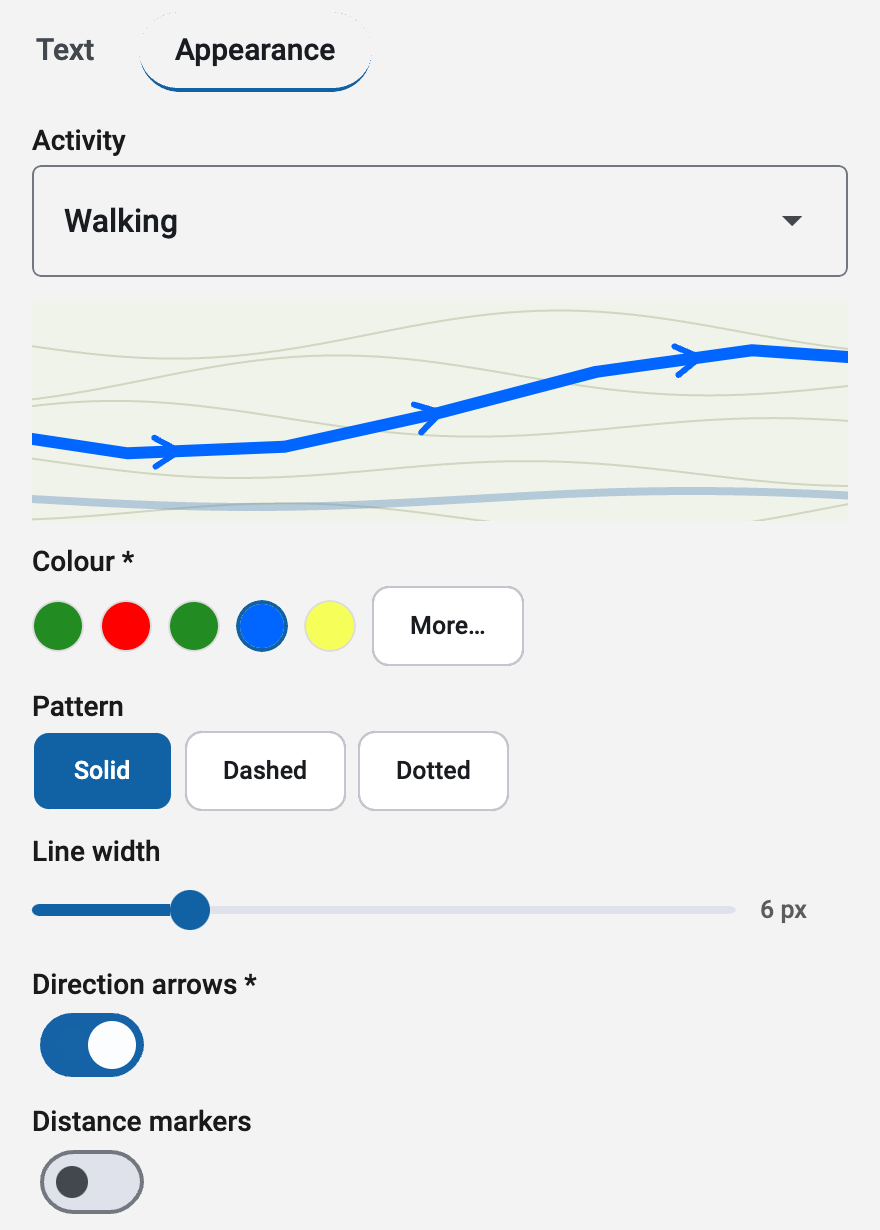
If the route has asterisks and you want it to follow the Activity, choose Reset appearance at the bottom of Appearance before you go on.
2. Change The Activity's Route Style
This changes every route that uses Walking at once.
- Open the menu button at the bottom right of the map, then Settings > Activities.
- Choose Walking.
- Open Route style.
- Set:
- Colour: red. For a see-through line, choose More… and lower Opacity.
- Pattern: dashed
- Line width: to taste. Wider lines also make distance markers and arrows larger.
- Direction arrows: on
- Distance markers: on
- Go back to the map. Every Walking route without its own colour, pattern or markers now shows the new style.
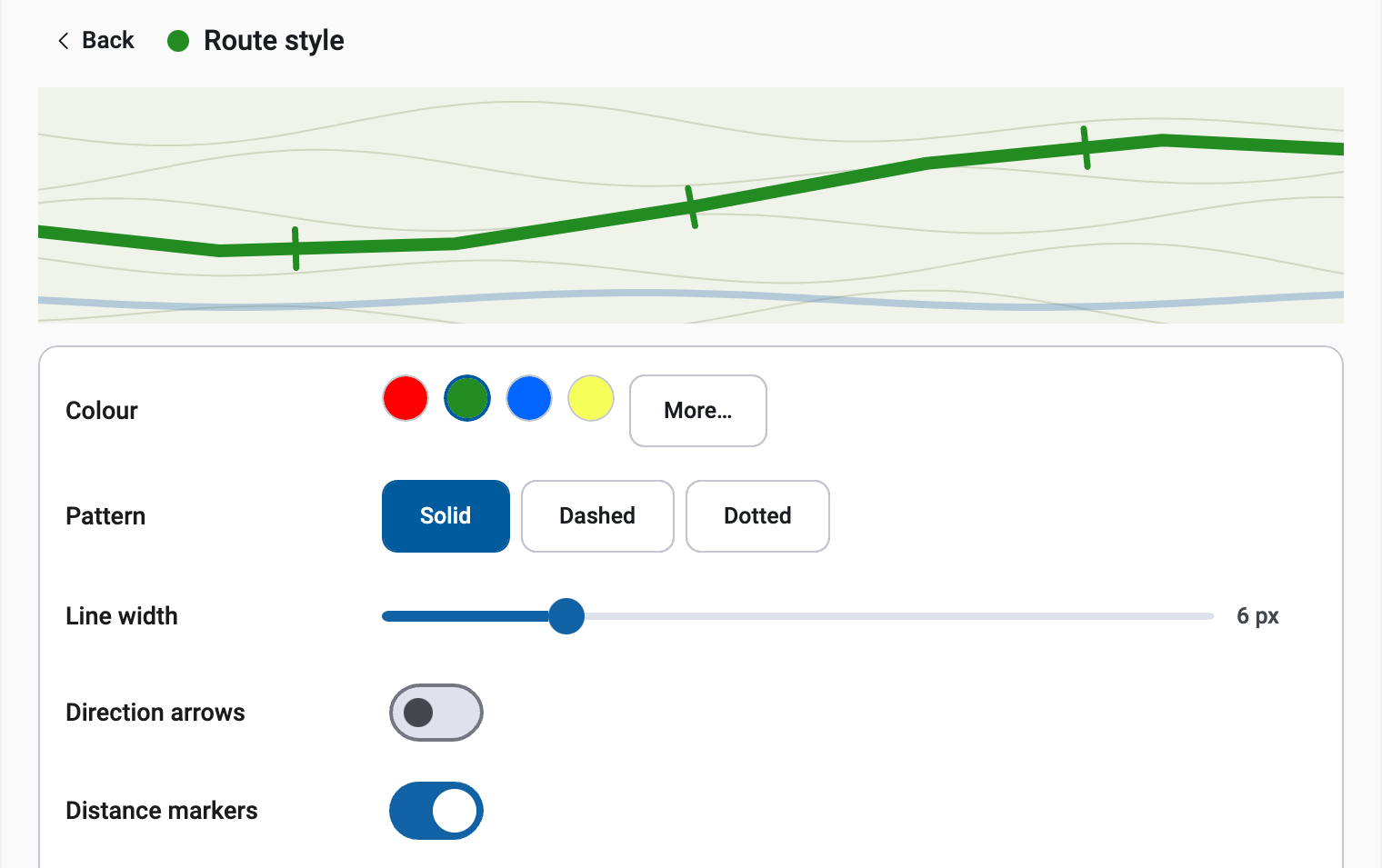
Distance markers are placed every mile or every kilometre, following Unit of Distance in Settings > Units.
Make sure you changed the Activity the route actually uses (step 1). Changing Hiking doesn't affect a Walking route.
On-Screen Width Limits
On-screen width limits sets the thinnest and thickest the line is ever drawn, in screen pixels, as you zoom in and out. All Activities start at 3 to 20 px.
- If lines look too thick when zoomed in, lower the maximum.
- If lines, arrows or markers are too small to see when zoomed out, raise the minimum.
3. Make New Routes Use This Activity
New routes use the Activity shown in the Edit Mode Activity picker, which starts on your Default activity.
To make Walking the default, open Settings > Activities > Walking and turn on Default activity. This only affects new items; existing routes keep their Activity.
4. Make One Route Different
Say one route should stay blue.
- Open that route's Properties > Appearance.
- Choose blue under Colour.
Colour * now has an asterisk: blue belongs to this route. Later changes to Walking's colour won't affect it, but changes to the other Walking settings still will.
5. Put It Back
- Open the route's Properties > Appearance.
- Choose Reset appearance.
The asterisks disappear and the route follows Walking again. Your Walking settings are not changed.
To put back only the colour, choose the first colour swatch, which is always the Activity's own colour.
Restyle A Whole Folder
Use this for a folder of routes that should all look the same, such as a folder of routes you have imported.
- In Routes, Tracks & Waypoints, open the folder's actions.
- Choose Set Activity....
- Choose the Activity they should all use.
- Check the counts in the confirmation, then choose Apply.
Everything in the folder, and in the folders inside it, now uses that Activity. Values set on individual items are cleared, so everything matches. One Undo puts it all back.
Temporarily adjust appearance before applying lets you change the look for this folder only, without changing the Activity. "Temporarily" means the Activity is left alone: your adjustments are saved on every item as its own values, marked *. Later changes to the Activity's Route style won't reach them. If you will want to change these routes again, change the Activity's Route style instead (section 2).
Use Another Activity For A Second Look
If you want different kinds of route to look different, for example a main route and a bad-weather alternative, you can use a different Activity for each look. Choose Activities you don't otherwise use, set their Route style, and give each route the matching Activity.
Each Activity also has its own Planning & statistics (speed and ascent rates for estimated times) and Saving locations (the folder new routes go to). Set those to match as well, or the times and folders for those routes will differ from Walking.